

Designers: How to Take a Full-Page Screenshot with Your iPad? (The Easy Way)

If you’ve ever tried to capture a full-page screenshot on your iPad — maybe to save a web design mockup, a client’s website inspo, or even a Pinterest board — you’ve probably noticed that a regular screenshot only grabs what’s visible on the screen.
But good news: your iPad can actually capture an entire webpage in just a few taps. 🙌
Here’s exactly how to do it.
Step 1: Take a Regular Screenshot
First, take a normal screenshot:
- If your iPad has a Home button: Press the Top button + Home button at the same time.
- If your iPad doesn’t have a Home button: Press the Top button + Volume Up button together.
You’ll see a small screenshot preview appear in the lower-left corner of your screen — tap it before it disappears.

Step 2: Tap “Full Page”
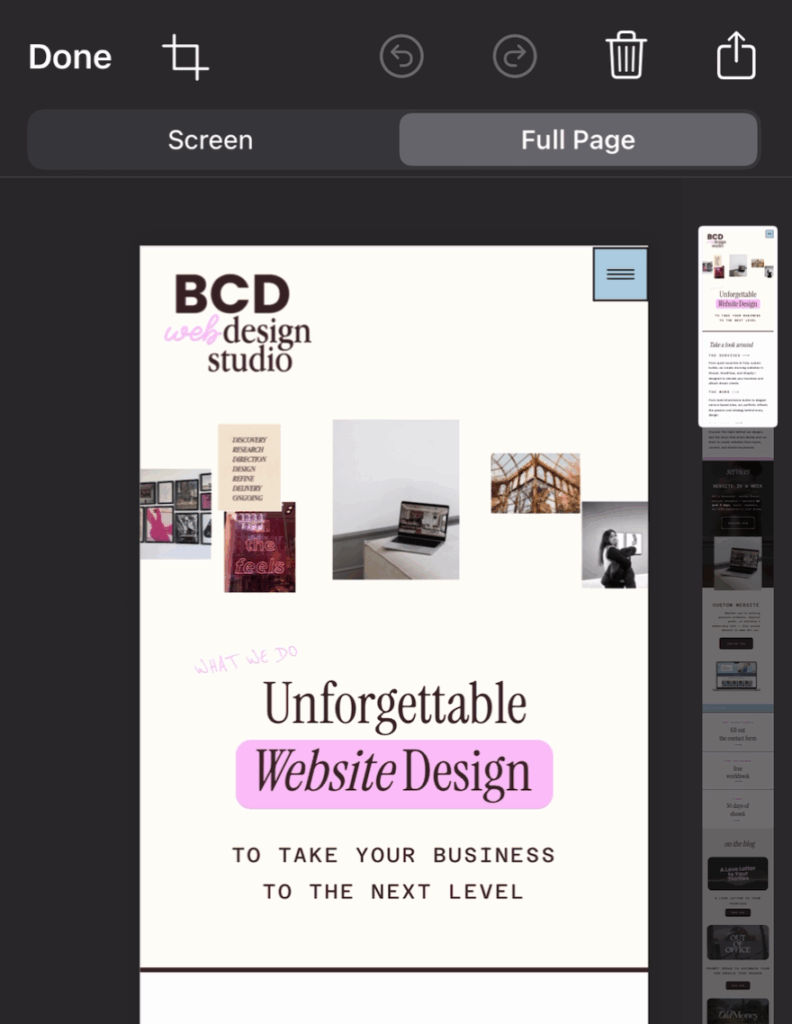
Once the screenshot editor opens, look at the top of the screen — you’ll see two tabs:
- Screen
- Full Page
Tap Full Page.
Boom 💥 — you’ll now see a full-page preview of the entire webpage (even the parts you had to scroll to see before).
Step 3: Adjust & Save
You can scroll through the full-page preview using the sidebar to see the whole page.
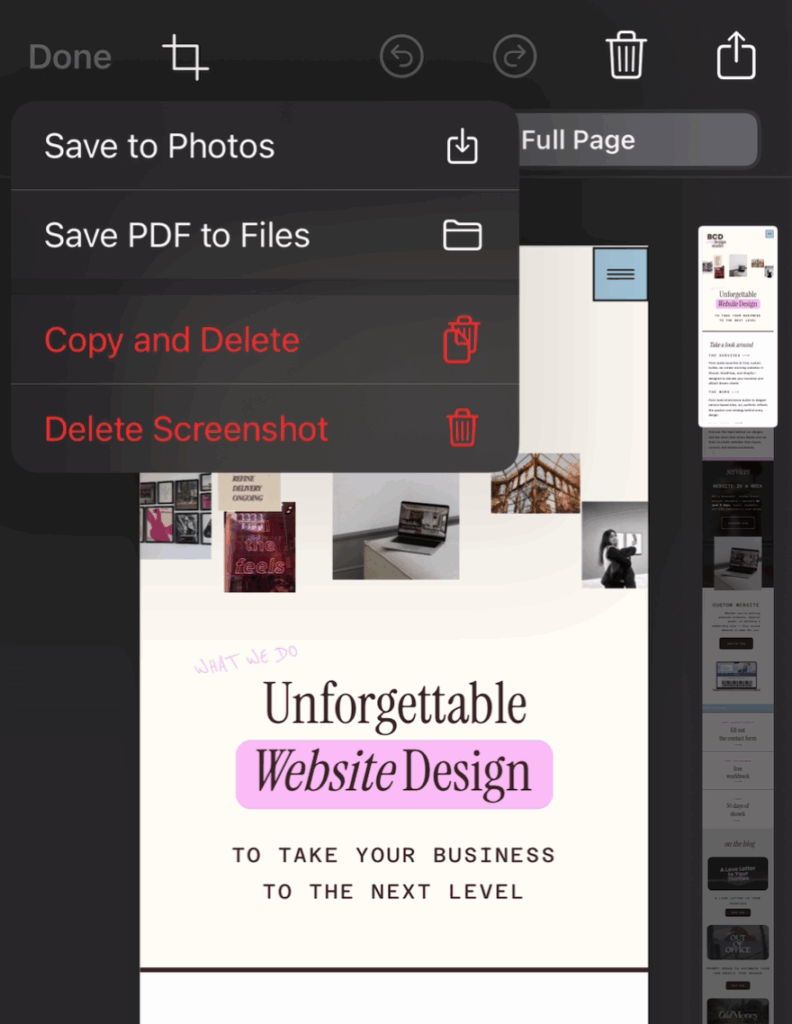
When you’re ready to save it:
- Tap Done, then choose Save PDF or Photo to Files.
- Select the folder where you want it stored — like your “Work Projects” or “Inspo” folder.
That’s it! You’ve just saved a full-page screenshot as a PDF.
Bonus Tip: Use It for Web Design Work
If you’re a business owner, designer, or creator, this trick is so useful:
- Capture a full webpage to study layout or flow.
- Save your own website to review design consistency.
- Keep a collection of visual inspiration for clients or projects.
It’s one of those small-but-mighty tools that makes your workflow smoother and keeps your creative ideas organized.
Pro Tip for Creatives
If you use an app like GoodNotes or Notability, you can even import your full-page screenshots and annotate them directly — perfect for taking notes or sketching out design feedback.
There you go — your full-page screenshot superpower unlocked!
Now go capture that inspo, analyze those designs, and keep building your dream digital space.


